4.3 Set run time
2 min readChoose a run frequency
Run time decides when automation runs. When creating or editing automation, you can run it once or repeat it on a schedule.
Common settings:
| Run type | Best for |
|---|---|
| Once | Pre-launch checks or reminders for a specific date |
| Daily | Daily reports, ad checks, inventory checks |
| Weekly | Weekly reports, content plans, SEO checks |
| Monthly | Monthly reviews, budget summaries, archive work |
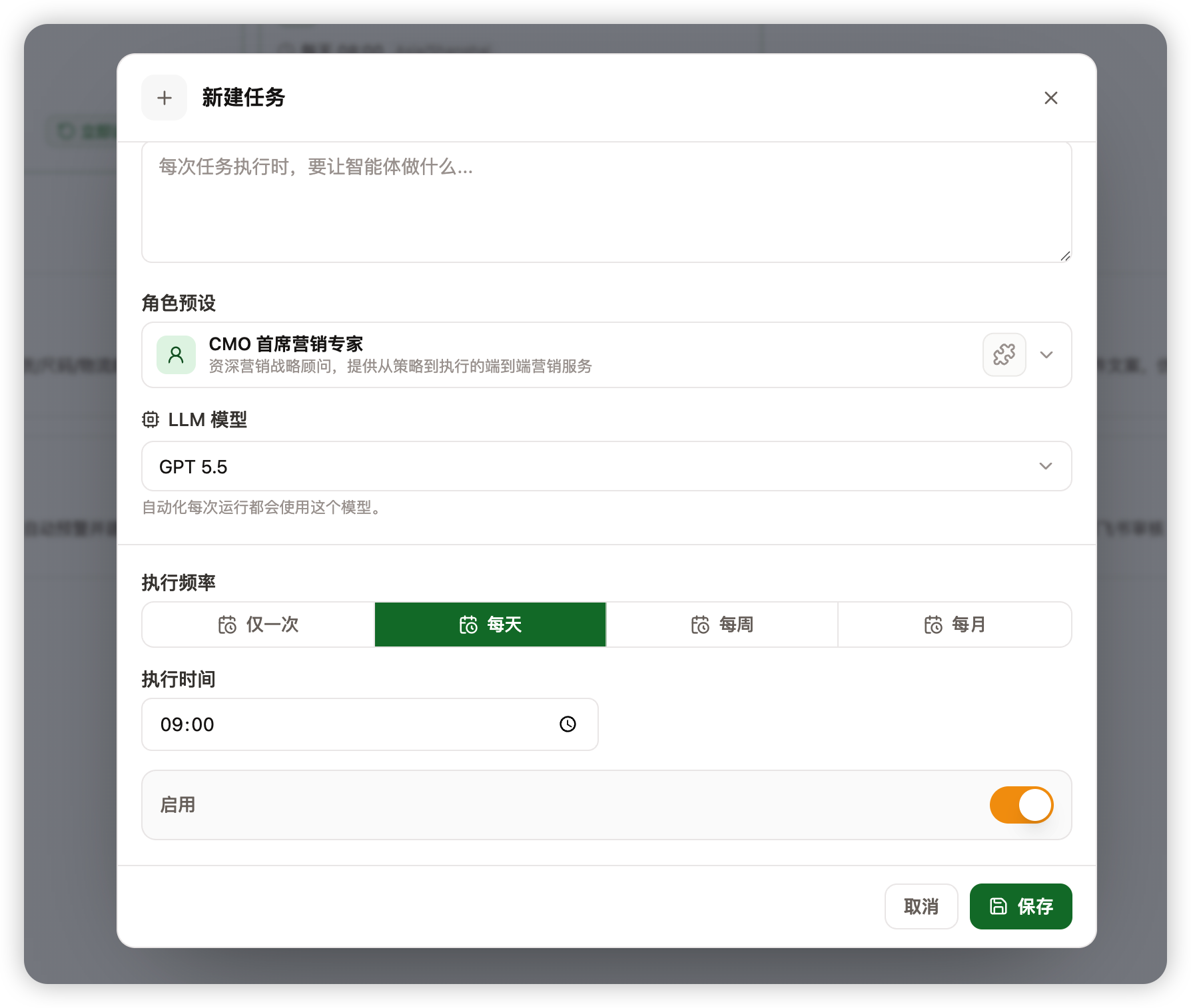
How to set it
- Open the automation.
- Find run time or schedule rules.
- Choose once, daily, weekly, or monthly.
- Set the date and time.
- Save and check the next run time.
If you are unsure about frequency, start lower, such as weekly. Increase it after you confirm the result is useful.
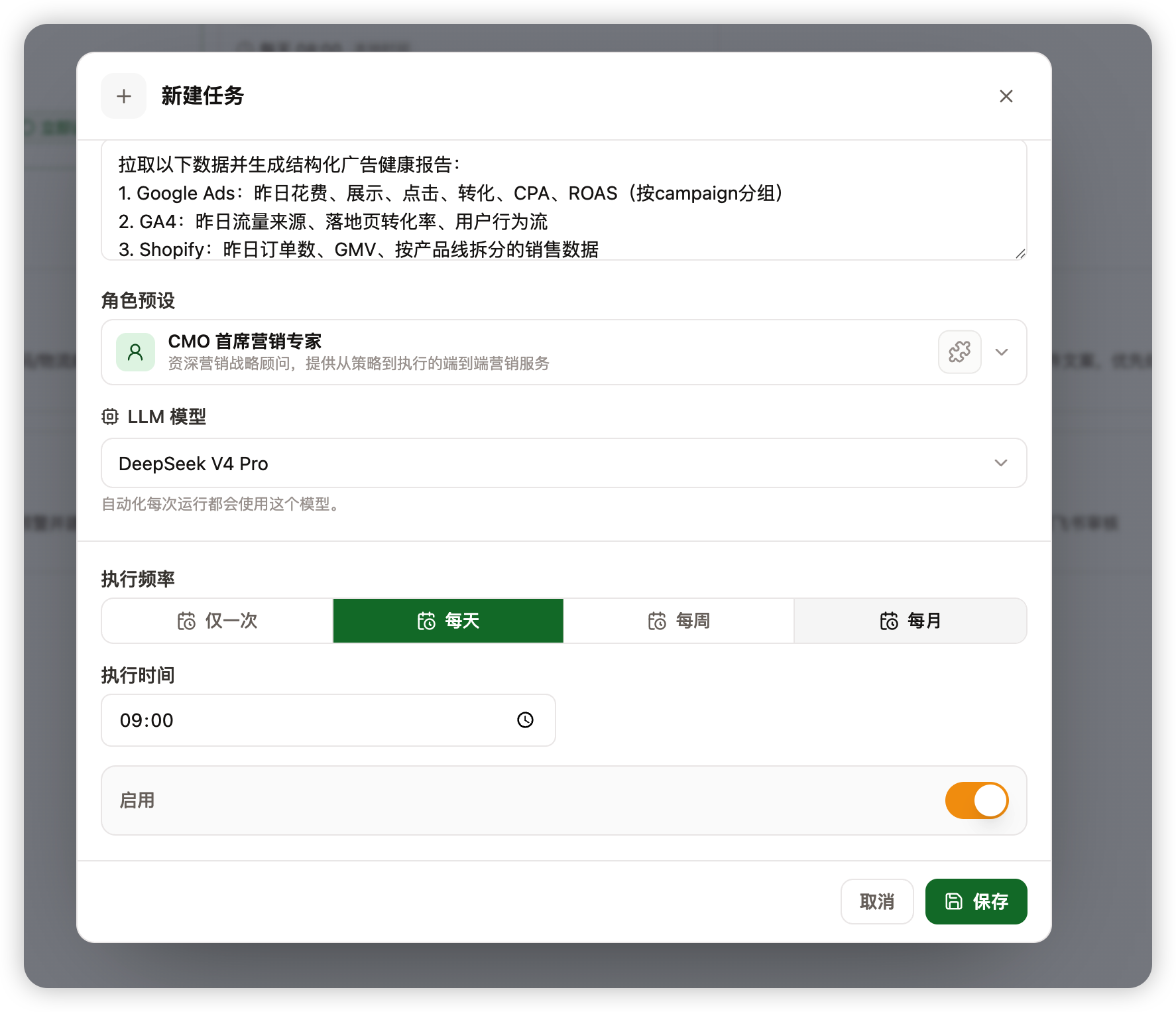
Run it manually first
You do not need to wait for the next scheduled run. Use Run now or Test to check the output first.
Run manually when:
- You create automation for the first time.
- You update the task brief.
- You change the run time.
- You switch brand, product, project, or connector data.
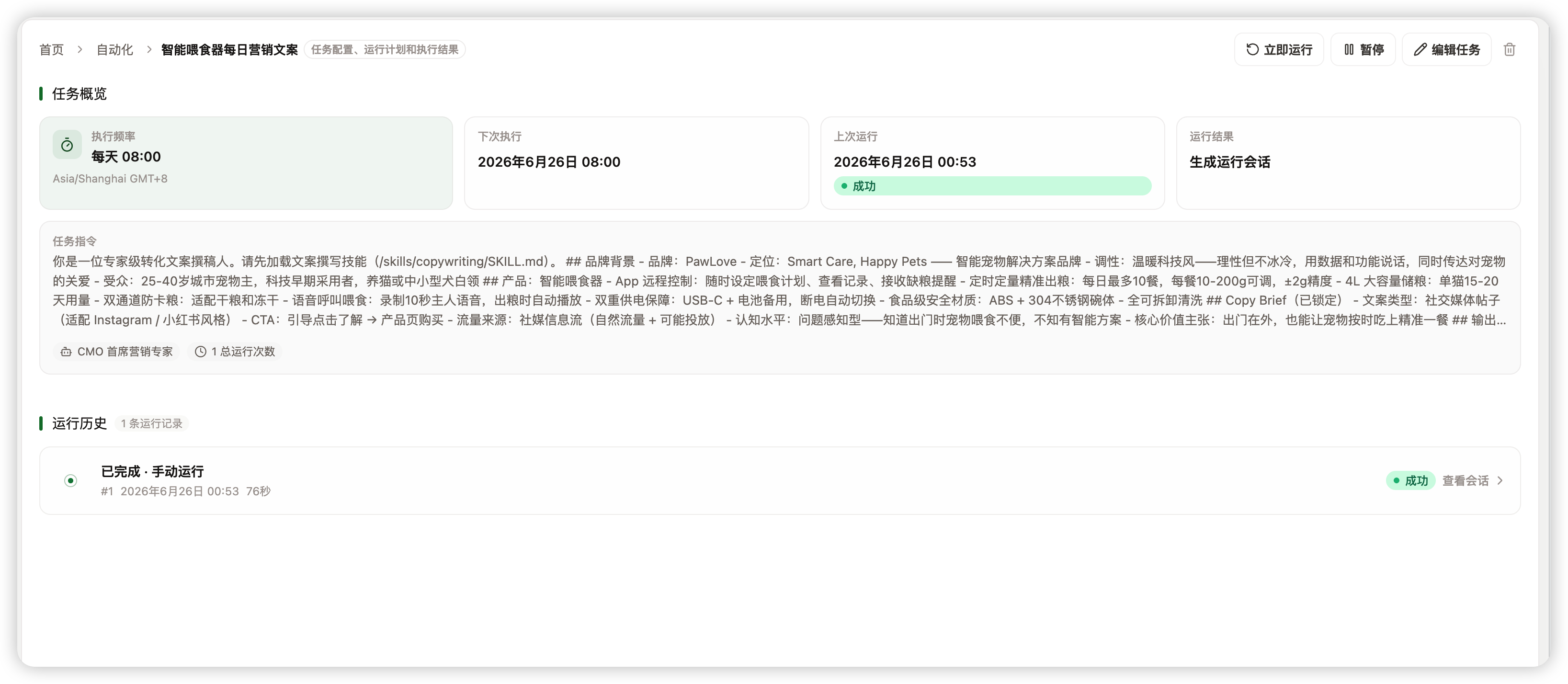
Change the run time later
You can update the run time after creation. The automation will use the new schedule after saving.
If you only want it to stop temporarily, pause it instead of deleting it.